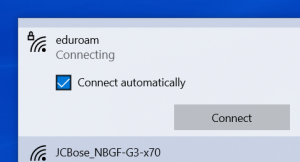
HBCSE WiFi Settings
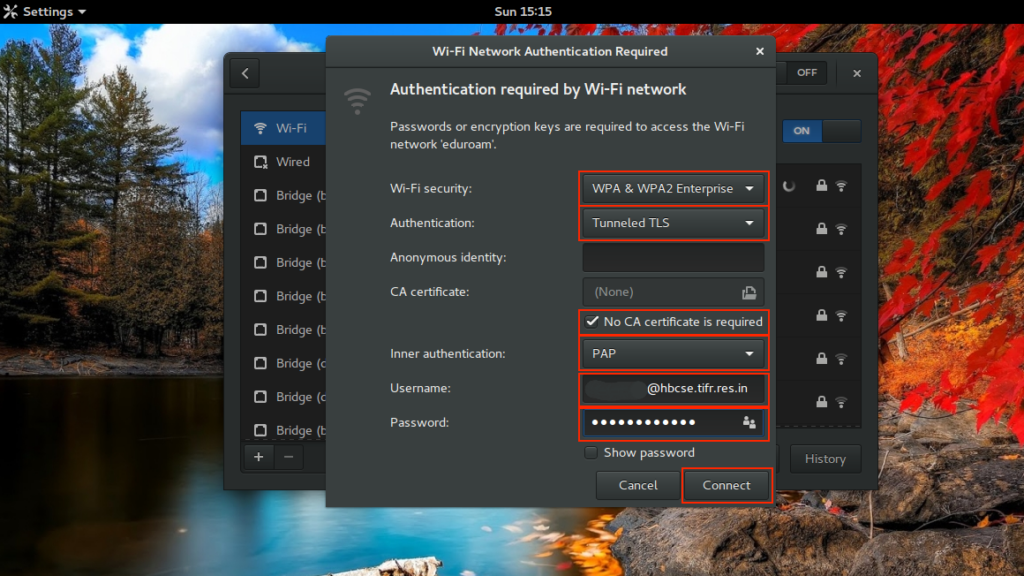
Staff WiFi setup for your device. Choose your operating system below.
Select your operating system
Use the tabs to open the steps for your device.

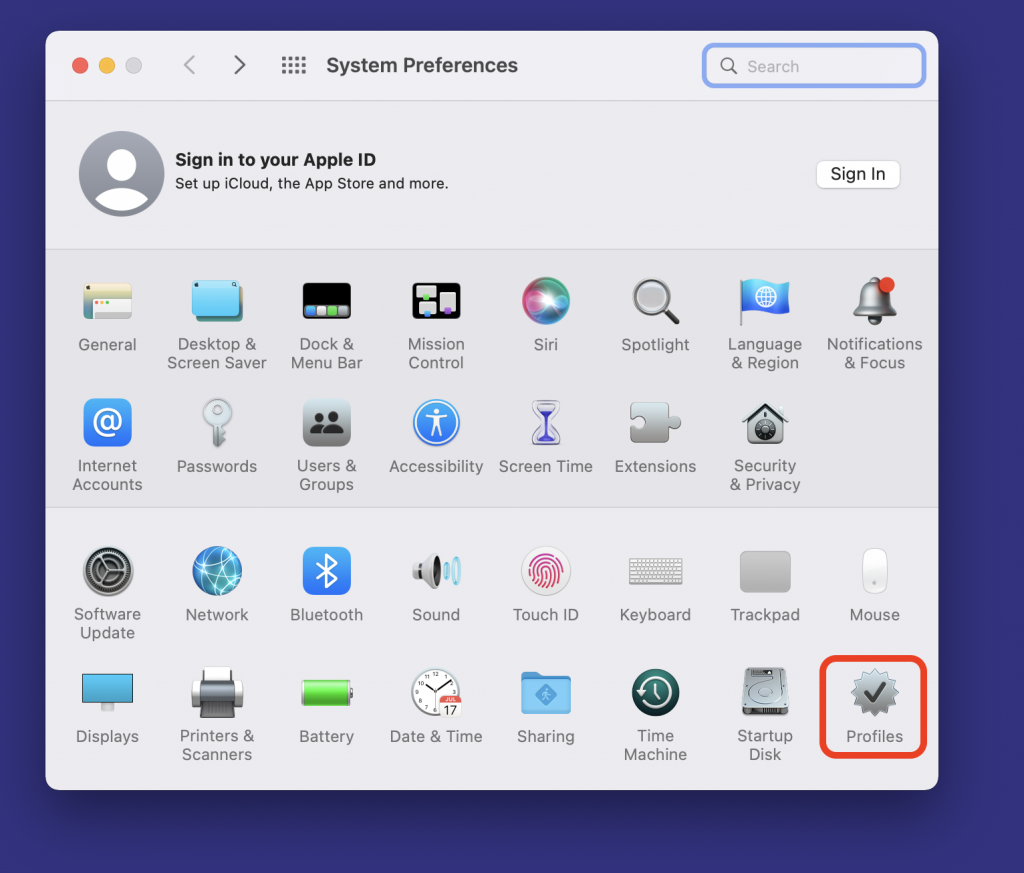
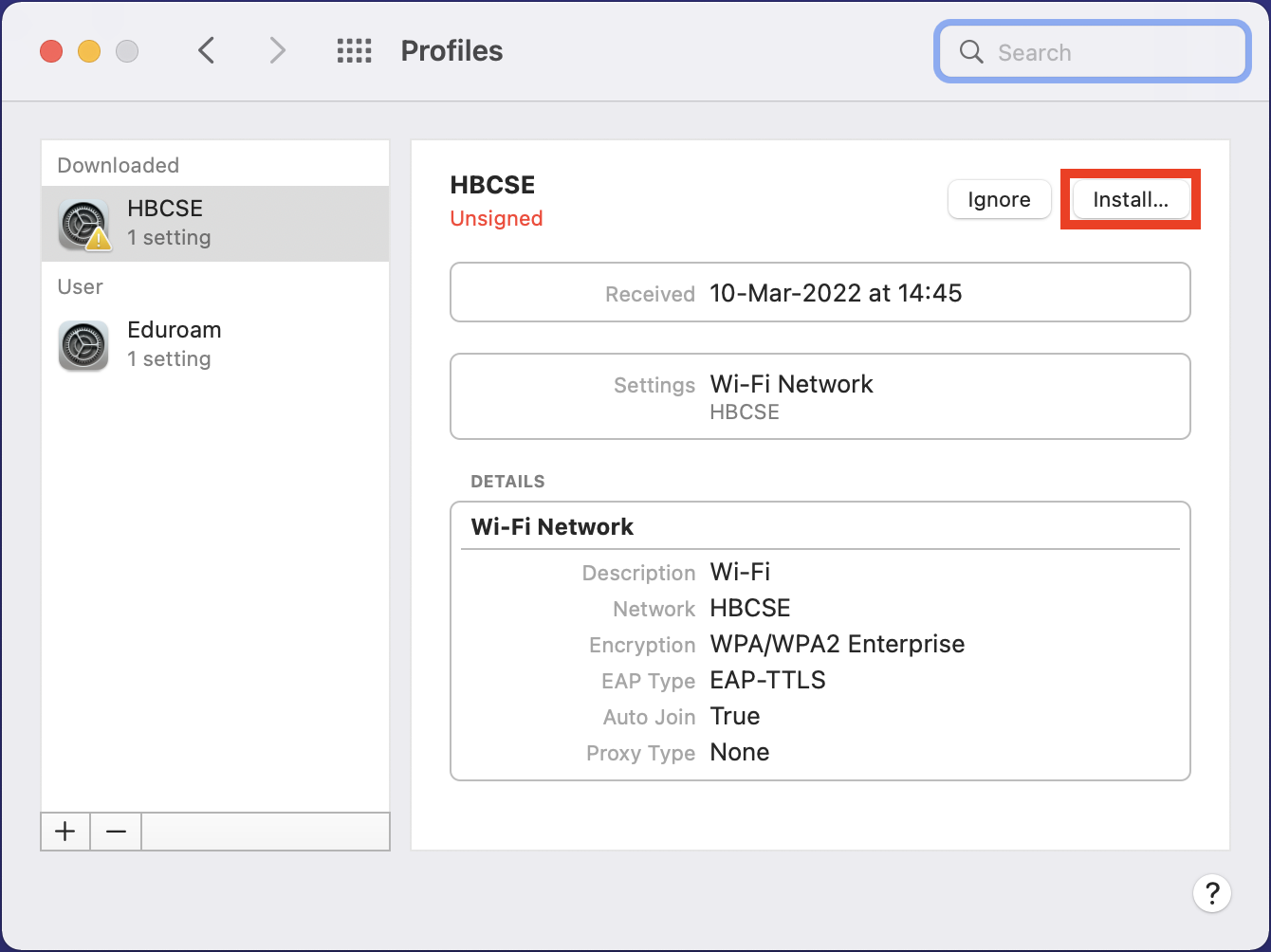
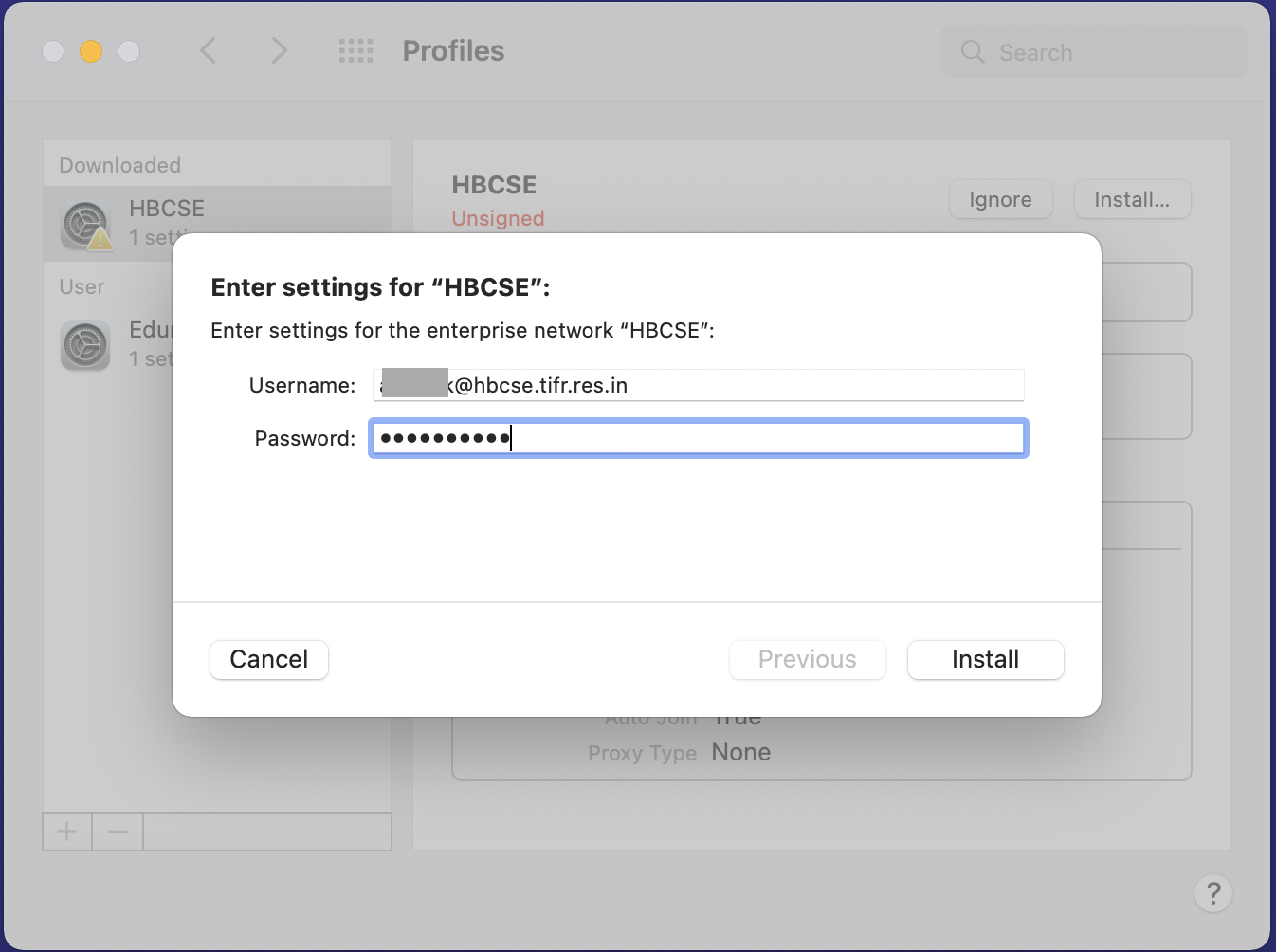
- Download the config profile for Apple devices: Download profile
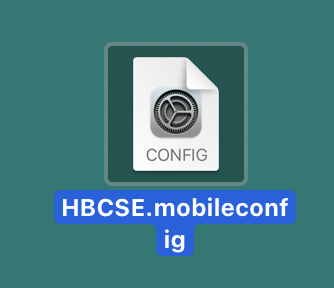
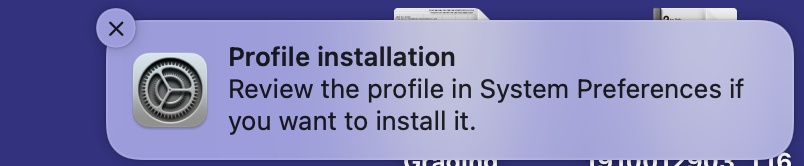
Unzip the file and double-click the “HBCSE.mobileconfig” file.
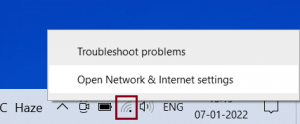
- Right-click the WiFi icon and select Network and Sharing Center.
- Click Set up a new connection or network.
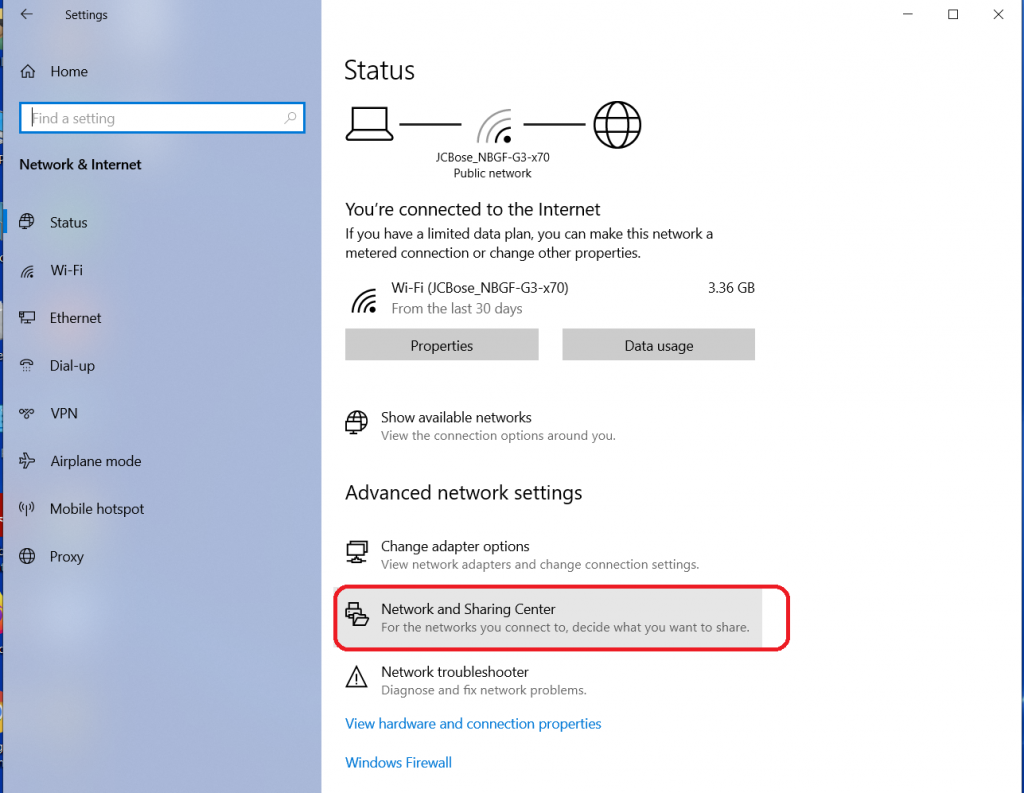
- Select Manually connect to a wireless network and click Next.
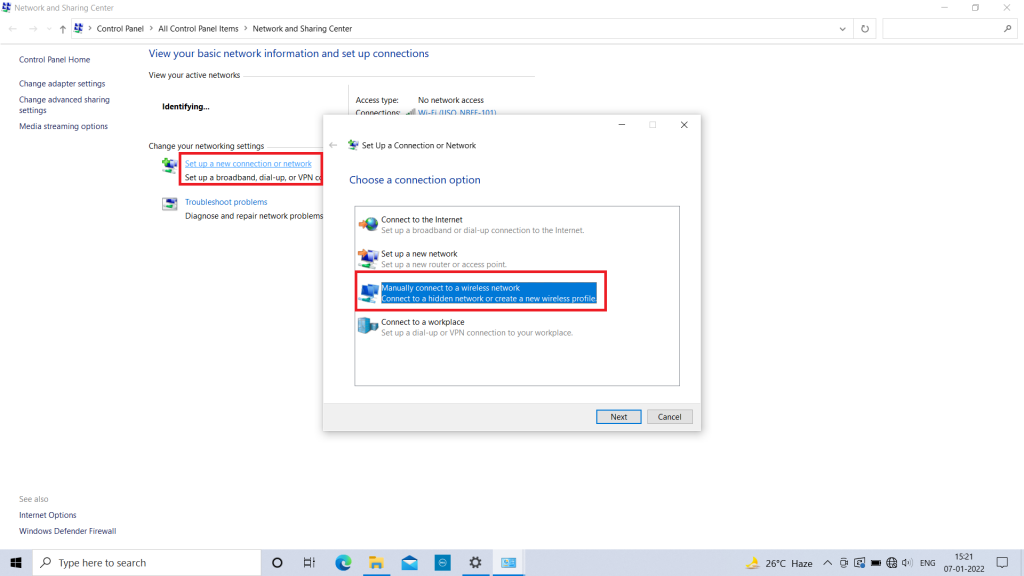
- Enter these fields and click Next: Network name HBCSE, Security type WPA2-Enterprise.
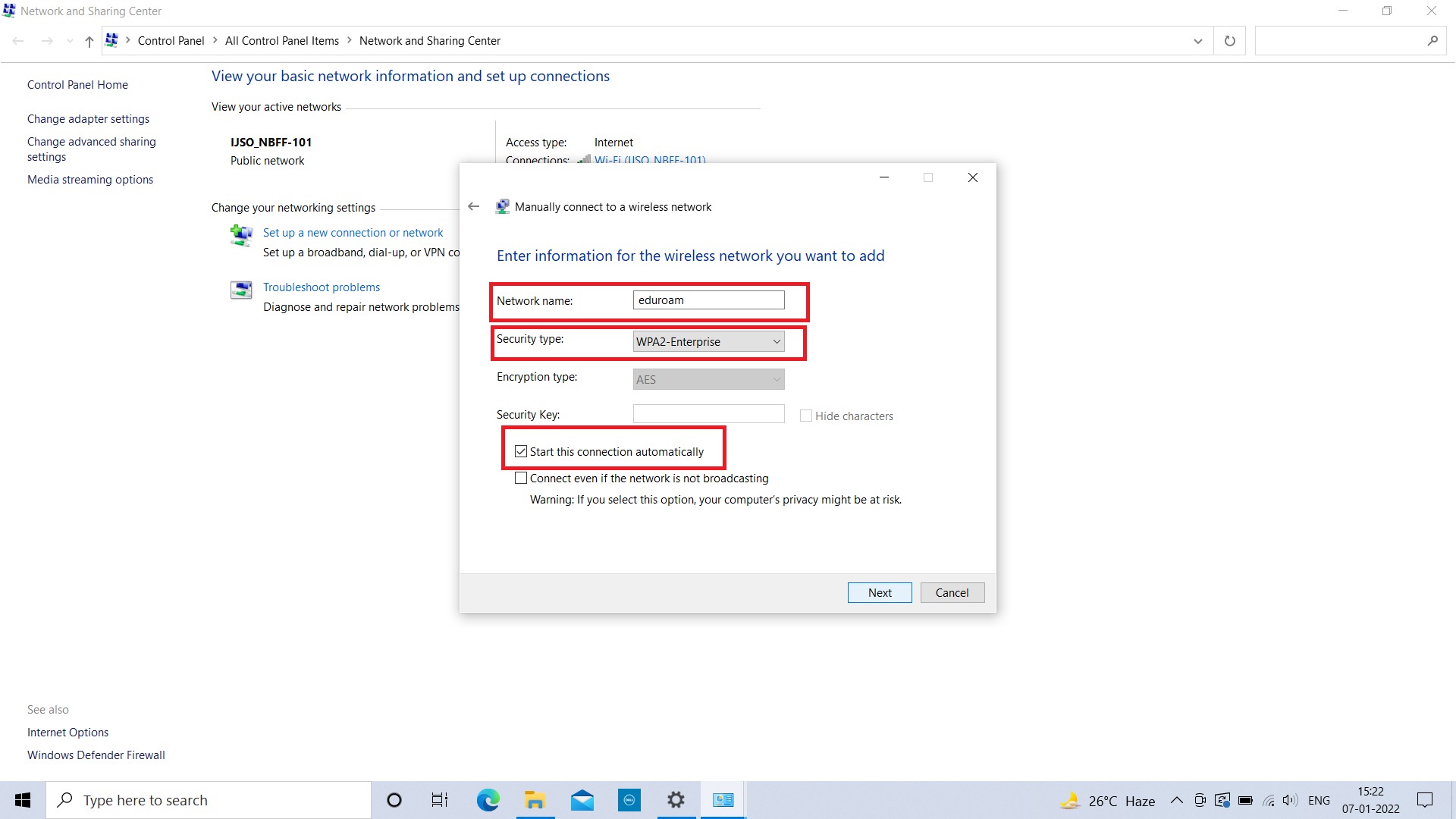
- Click Change connection settings.
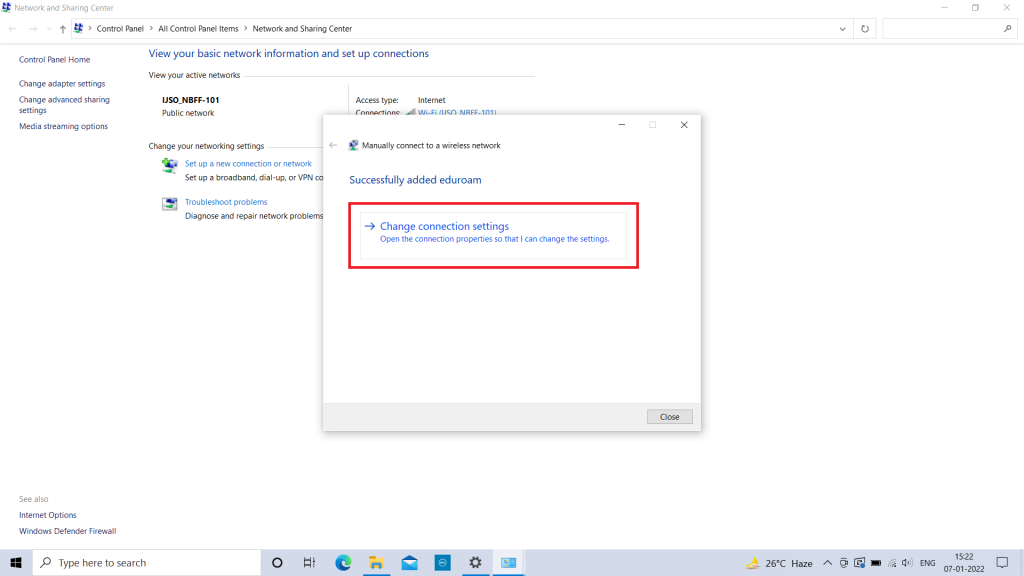
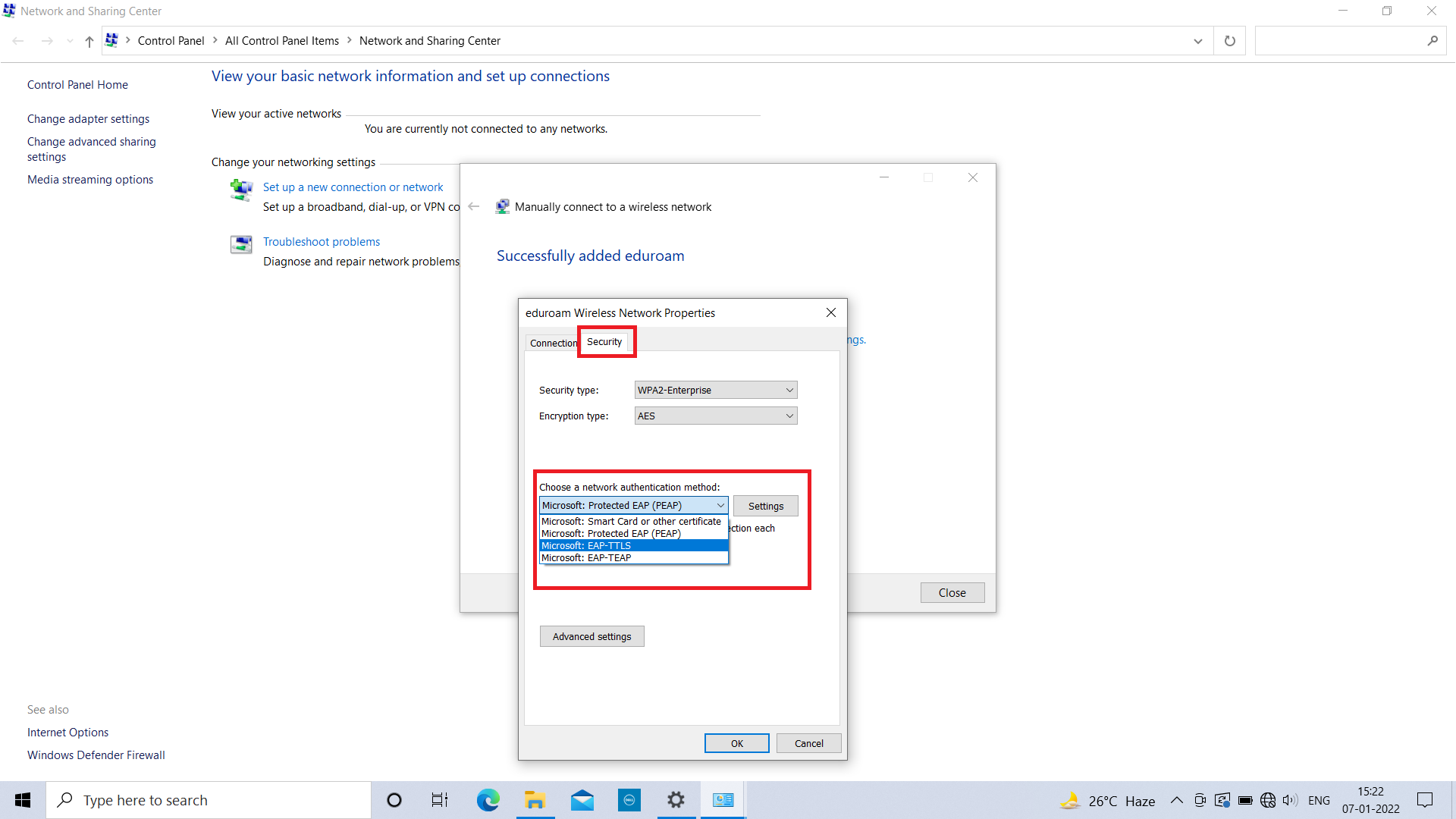
- Open the Security tab, choose Microsoft: EAP-TTLS, then click Settings.
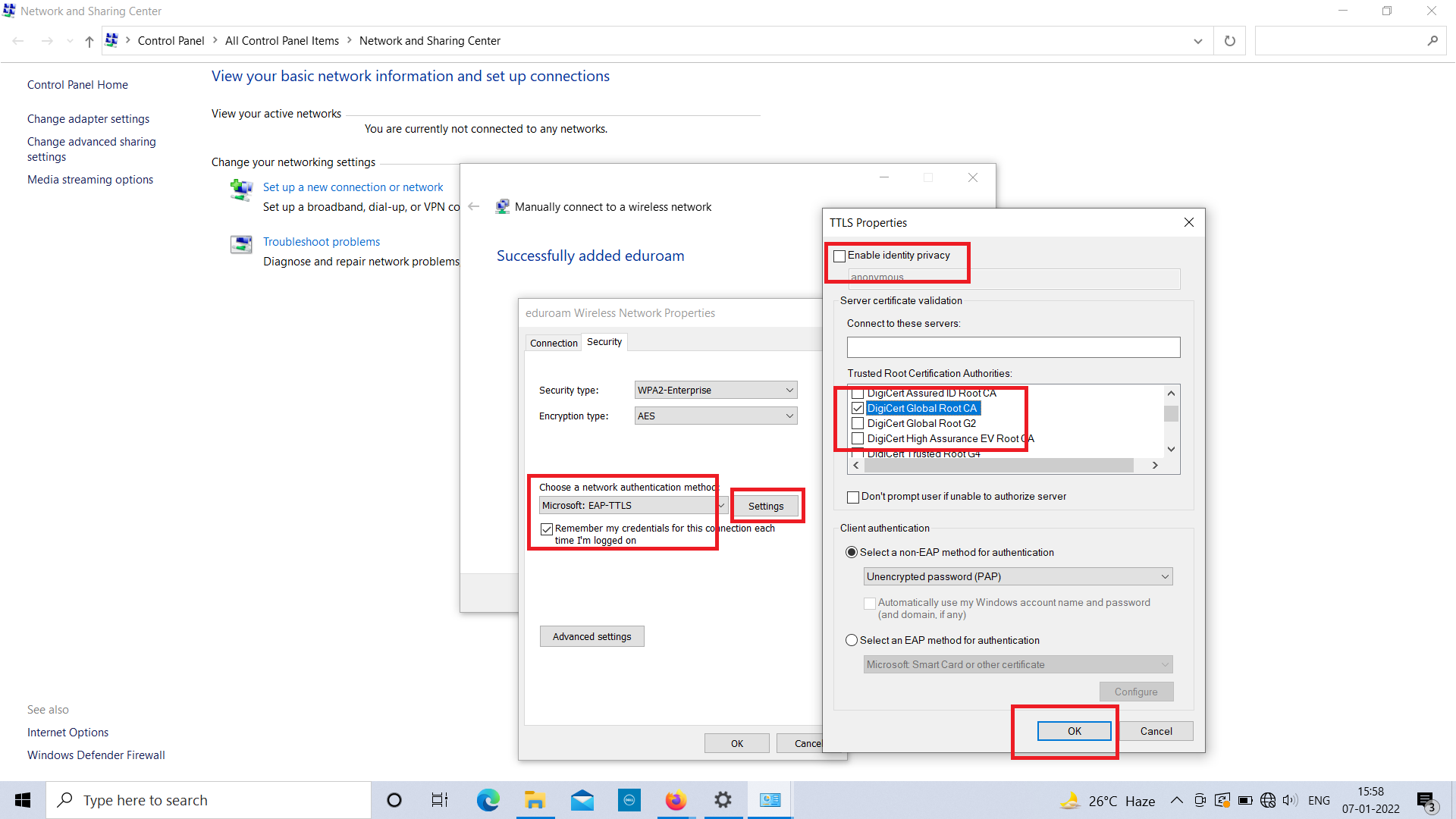
- Uncheck Enable identity privacy, and check DigiCert Global Root CA under Trusted Root Certification Authorities. Then click OK.
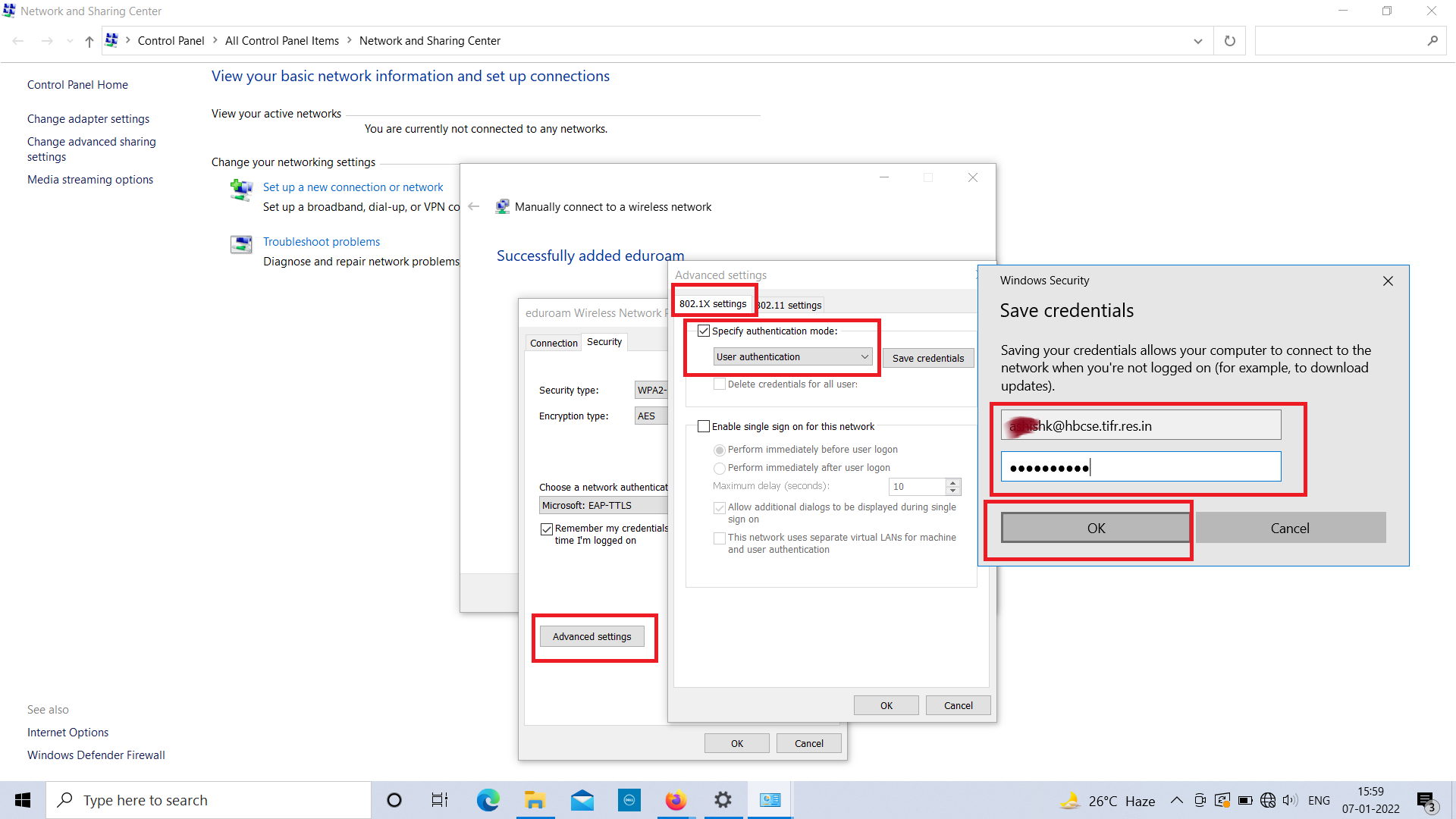
- Click Advanced settings, check Specify authentication mode, choose User authentication and click Save credentials. Enter your HBCSE full email address and email password, then click OK.
- Select the HBCSE WiFi and click Connect (click Connect again if it prompts).