Eduroam Settings
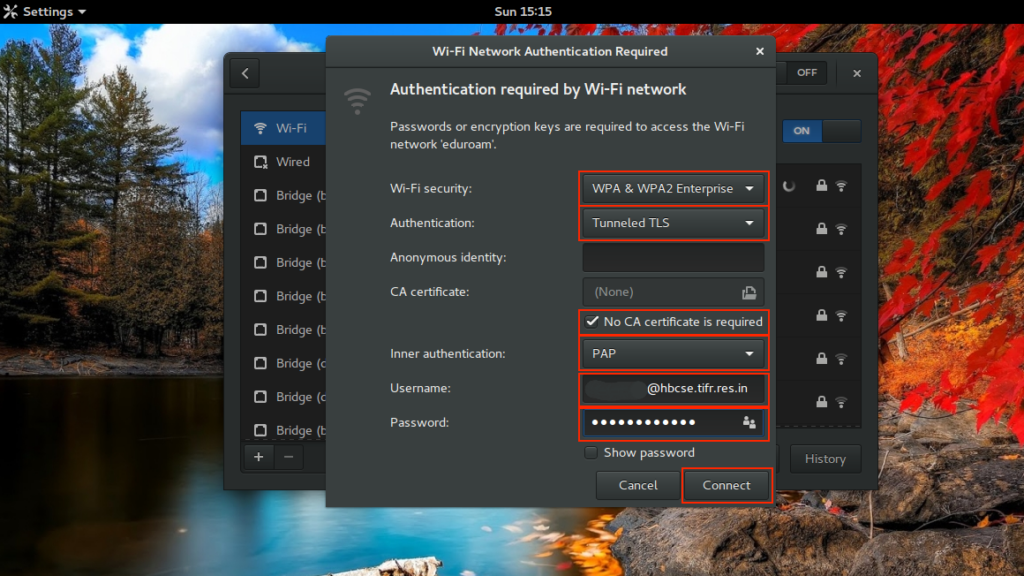
Connect to Eduroam at HBCSE with your email credentials. Follow the three steps, then pick your device.
Eduroam is a global community that gives you Internet access across the campuses of participating institutions. You sign in with your home institution’s account and get internet at the institutes you visit.
Select your OS: Eduroam
Use the tabs to open the detailed steps for your device.

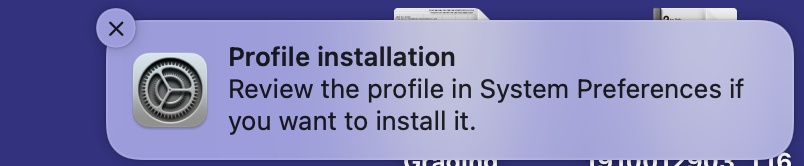
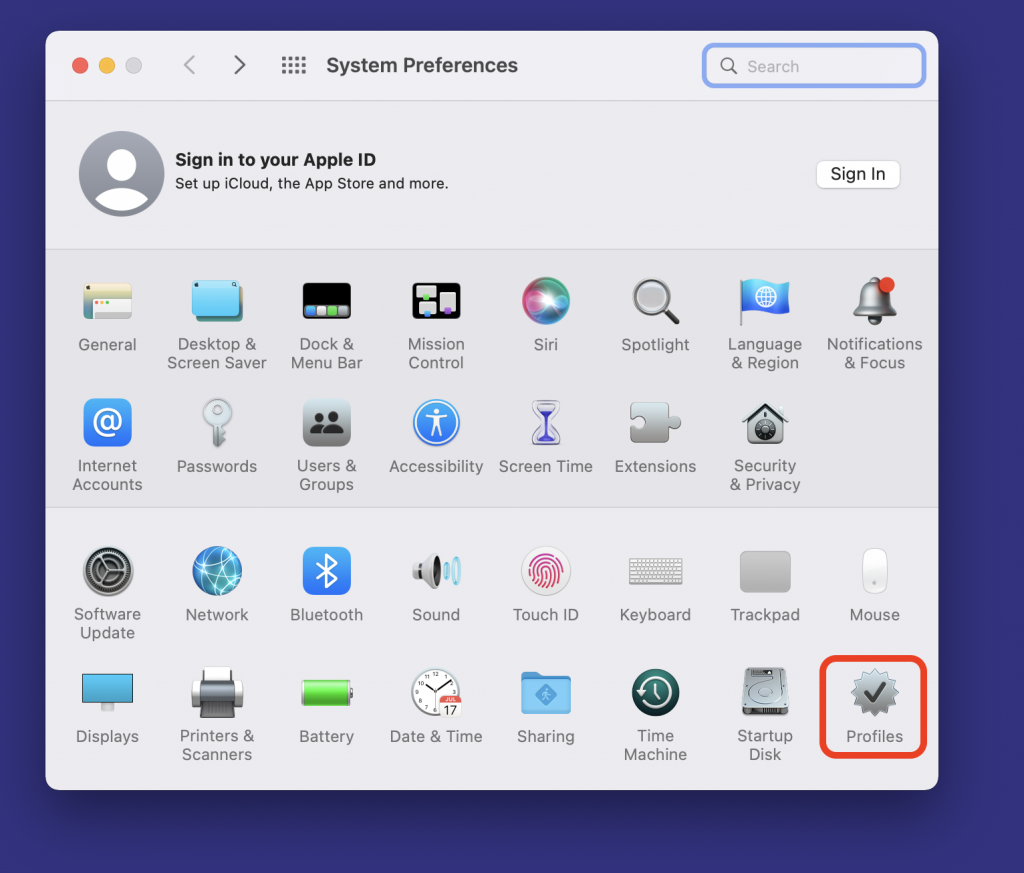
- Download the config profile for Apple devices: Download profile
Unzip the file and double-click the “eduroamhbc.mobileconfig” file.



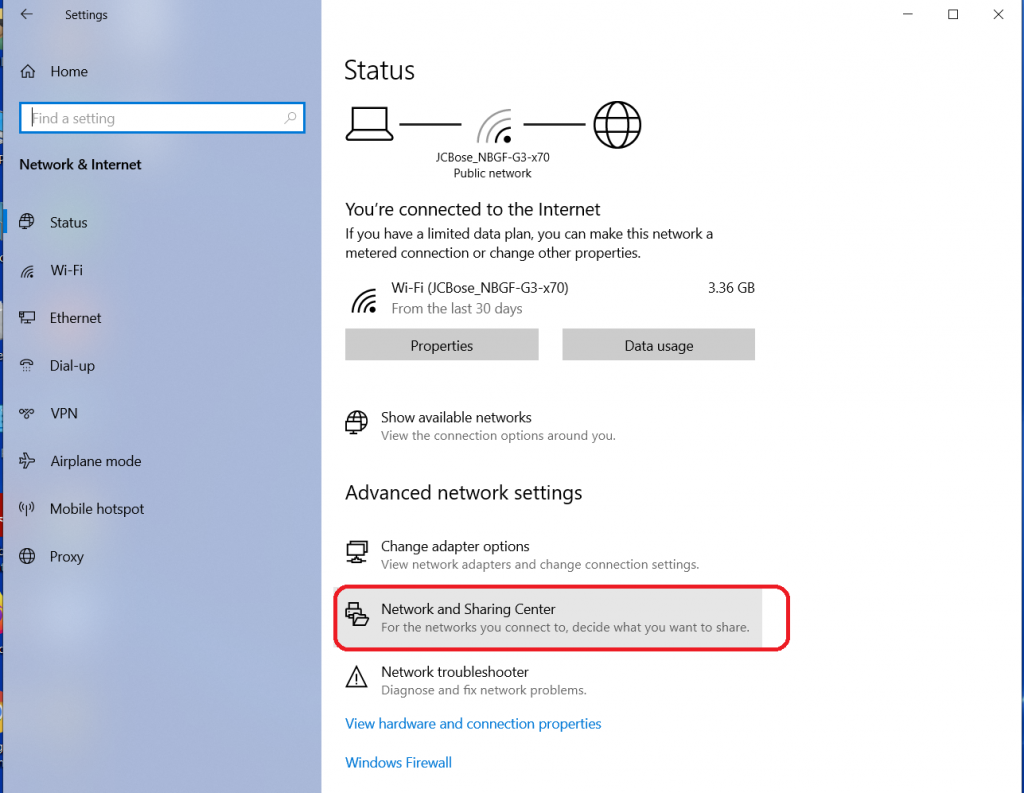
- Right-click the WiFi icon and select Network and Sharing Center.
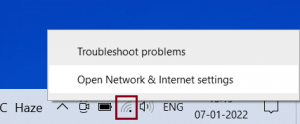
- Click Set up a new connection or network.
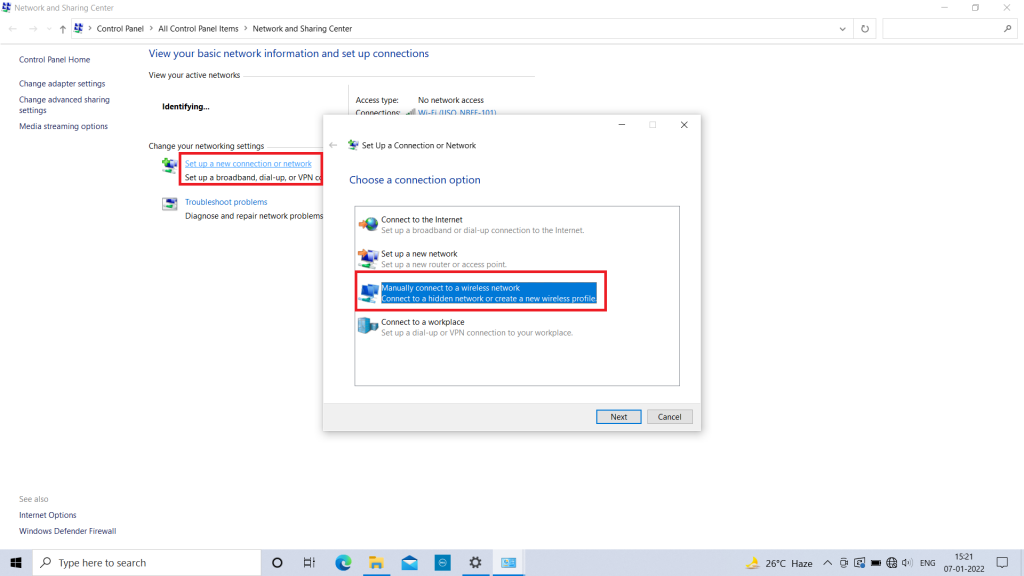
- Select Manually connect to a wireless network and click Next.
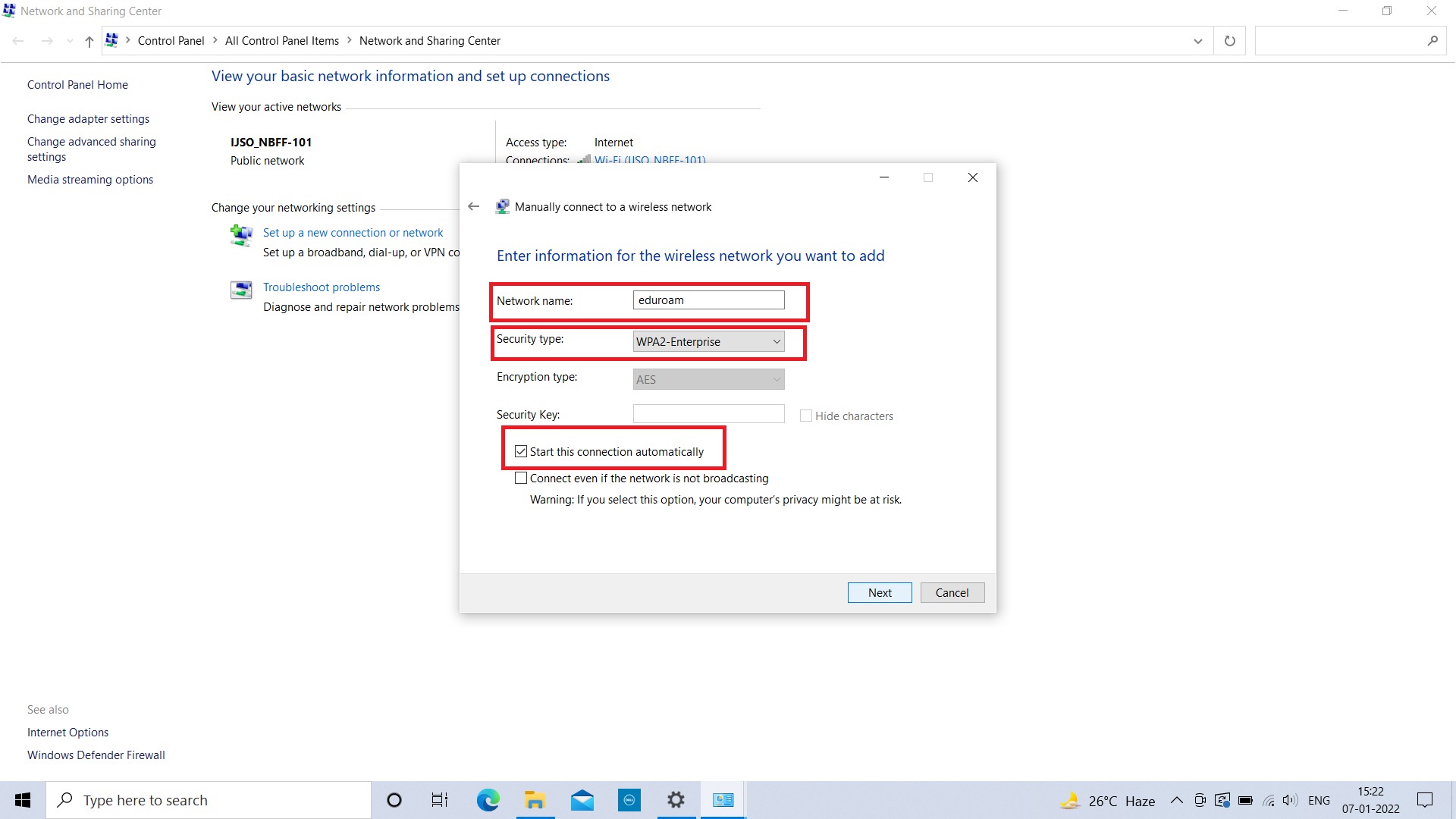
- Enter these fields and click Next: Network name eduroam, Security type WPA2-Enterprise.
- Click Change connection settings.
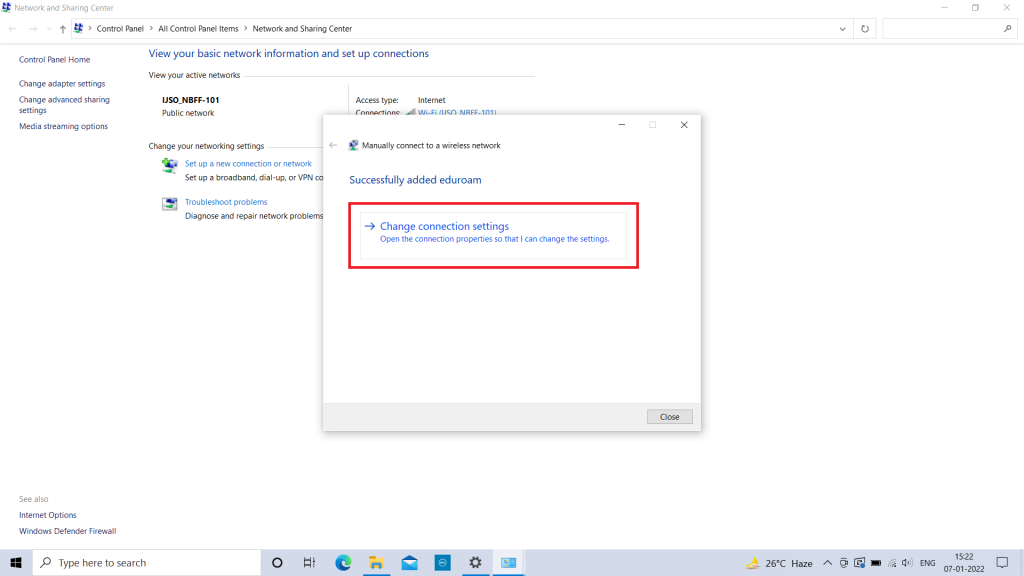
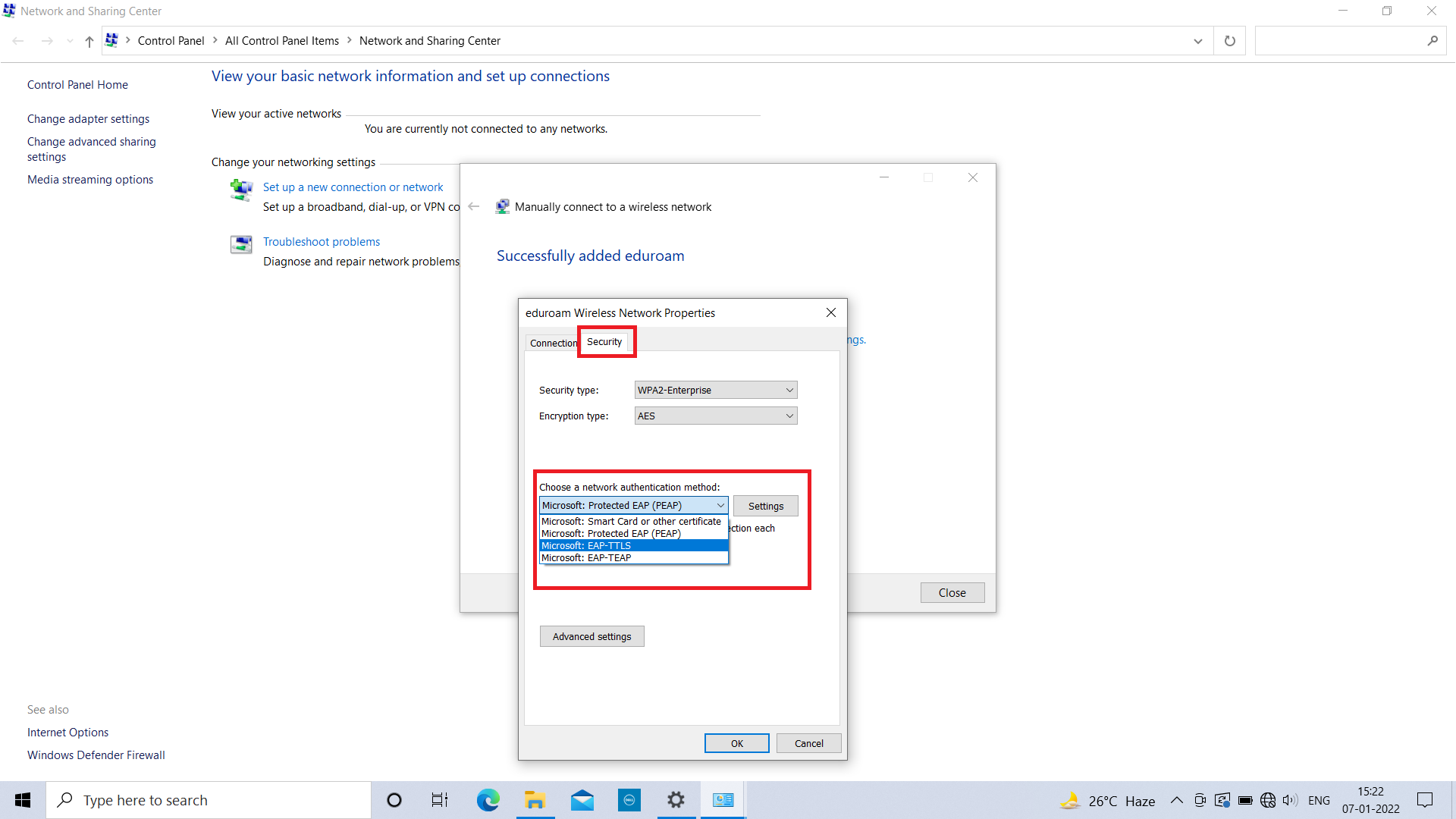
- Open the Security tab, choose Microsoft: EAP-TTLS, then click Settings.
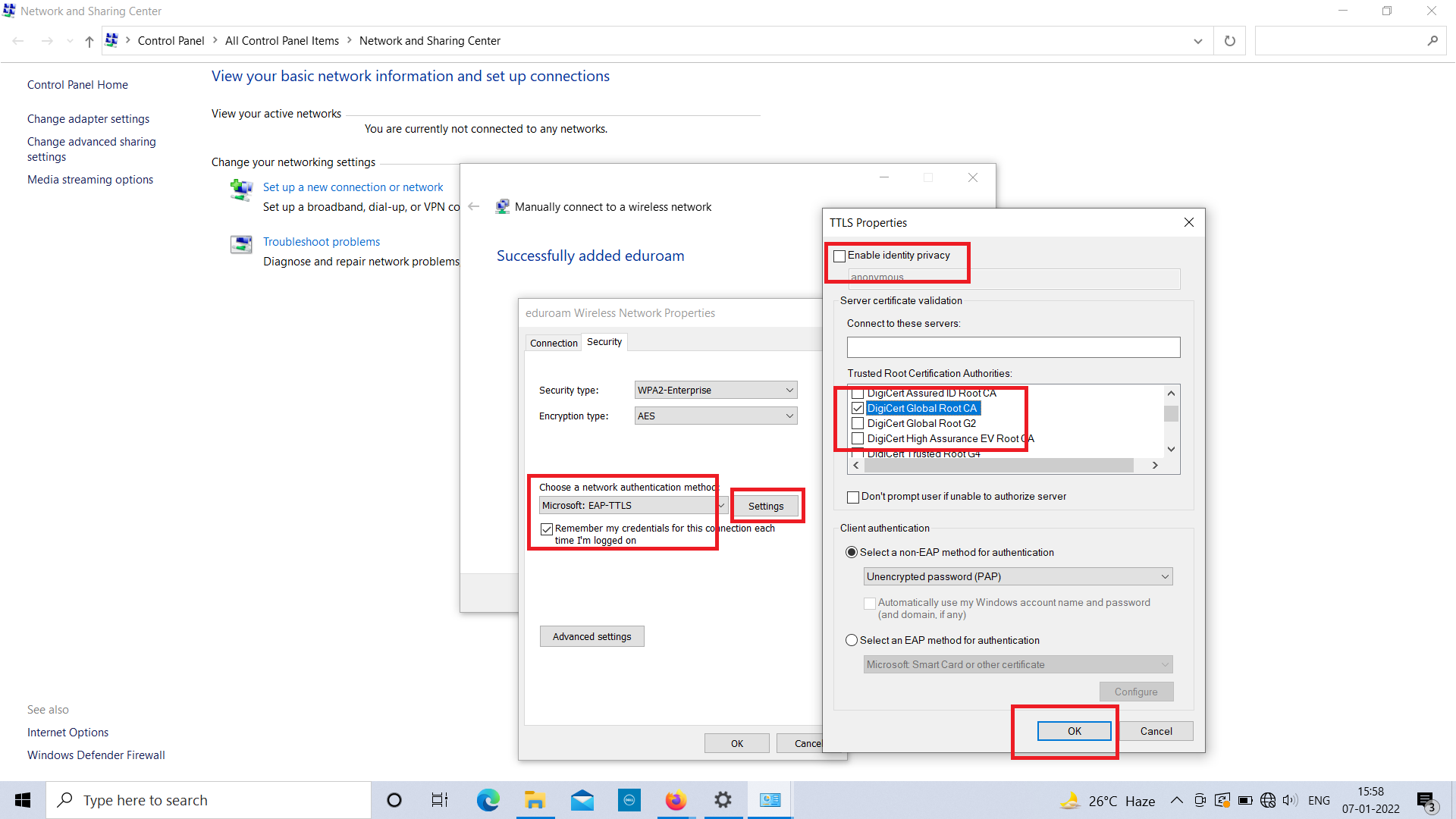
- Uncheck Enable identity privacy, and check DigiCert Global Root CA under Trusted Root Certification Authorities. Then click OK.
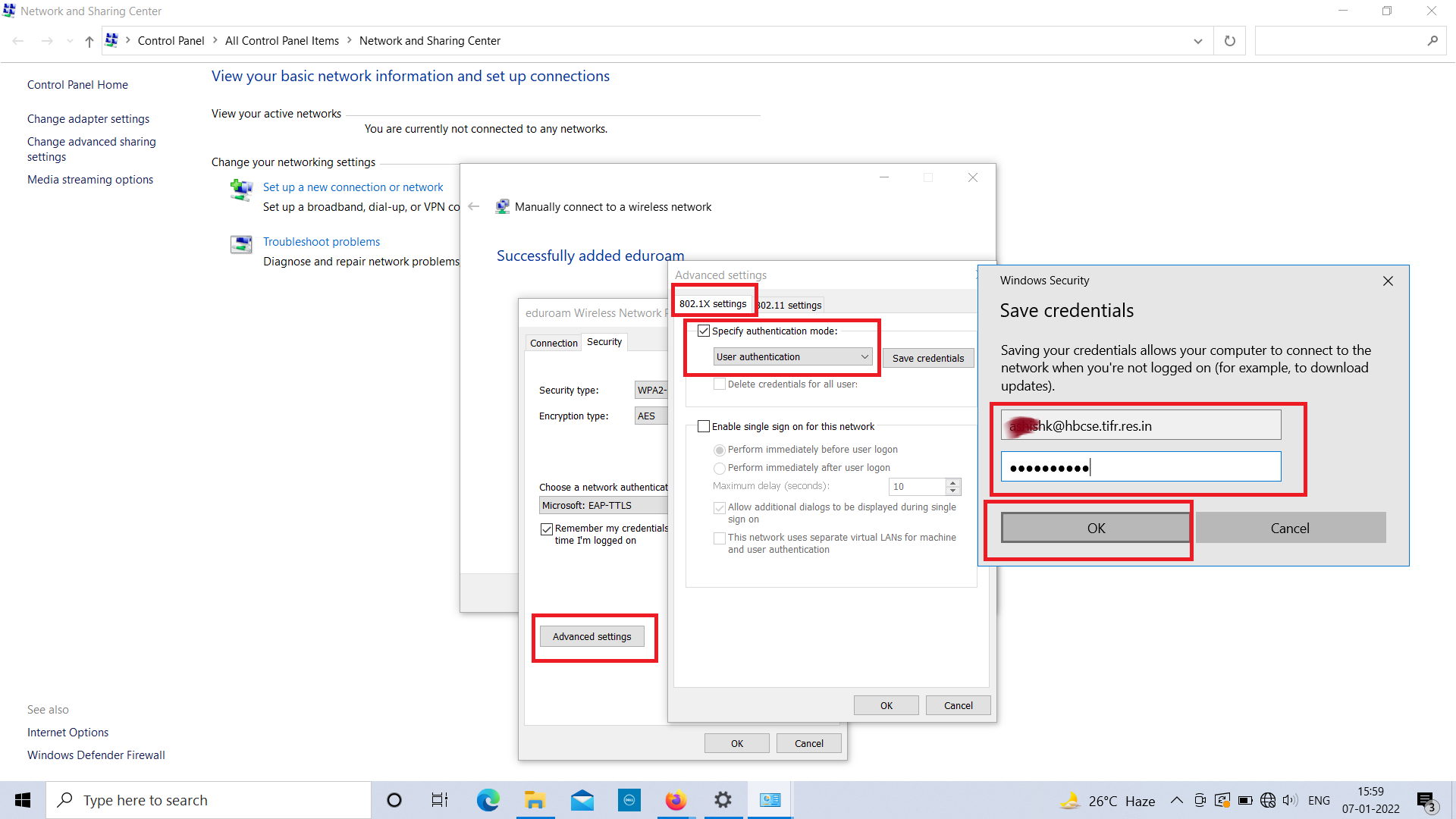
- Click Advanced settings, check Specify authentication mode, choose User authentication and click Save credentials. Enter your HBCSE full email address and email password, then click OK.
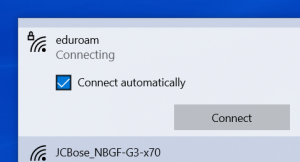
- Select the eduroam WiFi and click Connect (click Connect again if it prompts).