Connect to HBCSE-Guest
Step-by-step Wi-Fi setup for your phone, with screenshots for each choice.
Connect to HBCSE-Guest
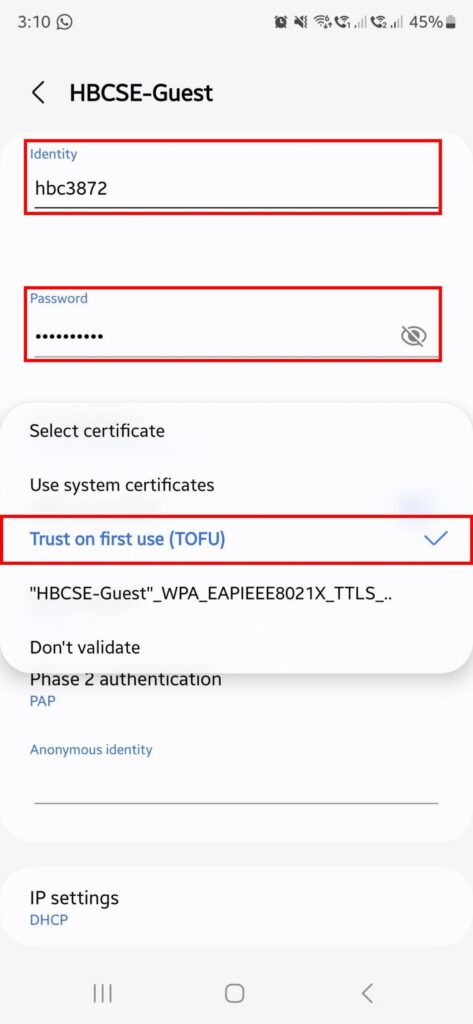
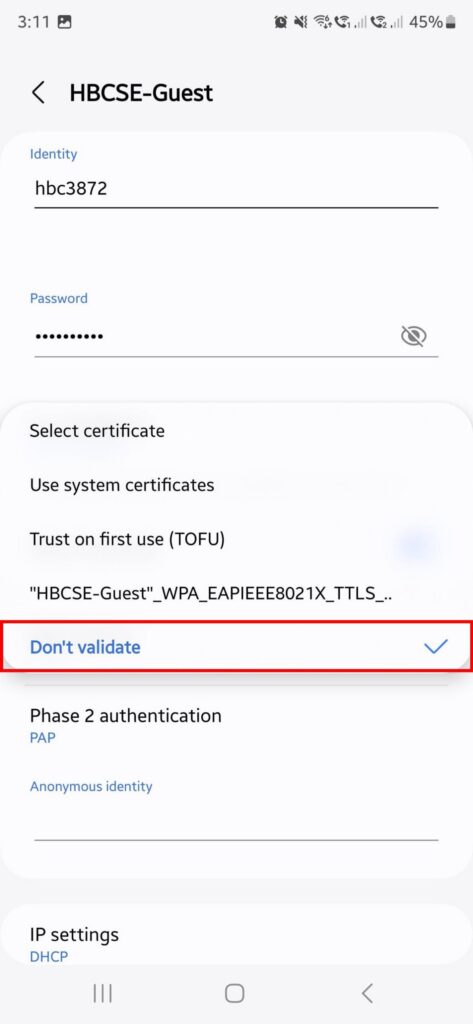
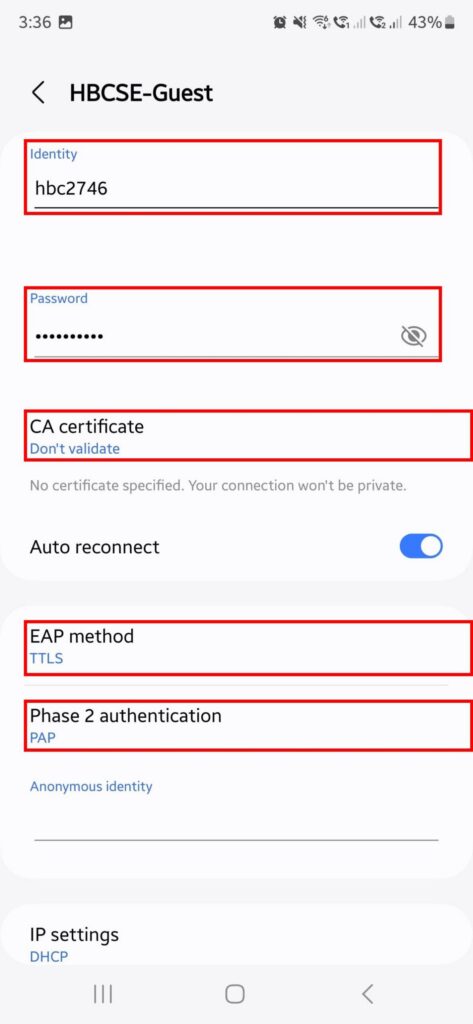
Follow these steps in your phone’s Wi-Fi settings. The screenshots show the options in step 4 and the final settings page.
- Open Settings → Connections → Wi-Fi and tap HBCSE-Guest.
- Set EAP method to TTLS.
- Set Phase 2 authentication to PAP.
- Tap CA certificate and choose one of the two options shown in the screenshots. Trust on first use (TOFU) is the better choice: after you connect, tap Trust on the prompt that appears. Don’t validate also works.
- Type your Identity (your username, e.g. hbc####) in the first red box.
- Type your Password in the second red box. Tap the eye icon if you want to check what you typed.
- Leave Anonymous identity empty and keep IP settings on DHCP.
- Scroll down and tap Connect. If you chose TOFU, tap Trust on the certificate prompt.
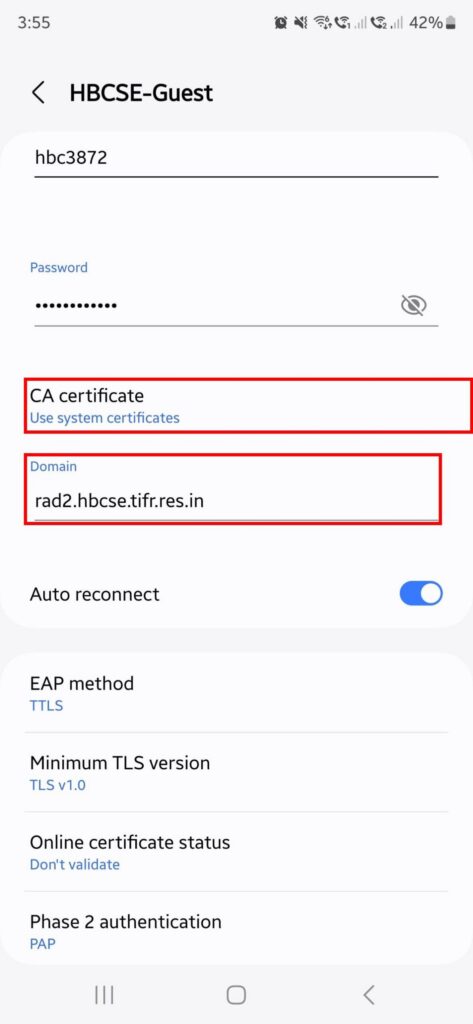
If the settings above didn’t work
Use this version if the first settings failed, or if your device is a newer version.
- Open the HBCSE-Guest settings page again.
- Set CA certificate to Use system certificates.
- In the Domain field that appears, type rad2.hbcse.tifr.res.in.
- Keep EAP method as TTLS and Phase 2 authentication as PAP.
- Enter your Identity and Password, then tap Connect.