
HBCSE Email Forwarding Steps
Send a copy of your HBCSE email to another address by creating one filter.
How to forward your email
Follow the six steps below. The picture shows how forwarding works.
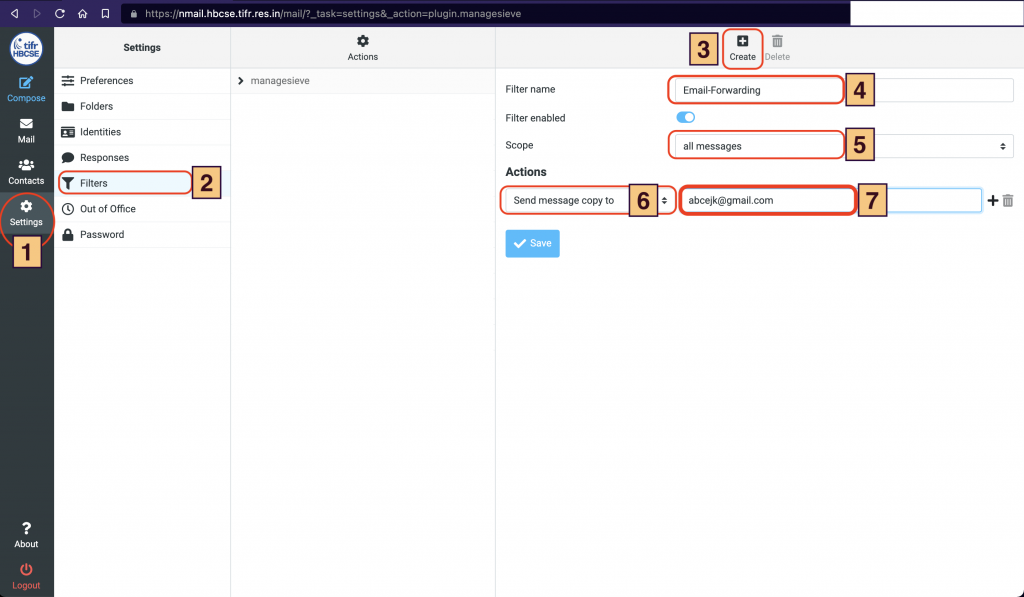
- After logging in to your HBCSE email, go to Settings.
- Click Filters in the left side menu.
- On the Filters page, click the Create button at the top right of the browser window.
- In the Filter name field, type forward.
- In the Scope field, select All messages.
- In the Actions section, select Send message copy to, and in the field next to it type the email address where you want your mail forwarded.