
Gmail Password setup steps :
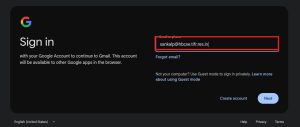
Step 1: Enter your email address
Go to gmail.com, type in your email address, and click Next.
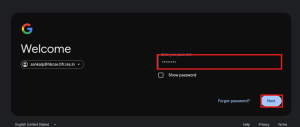
Step 2 — Enter your password
Type your password and click Next.

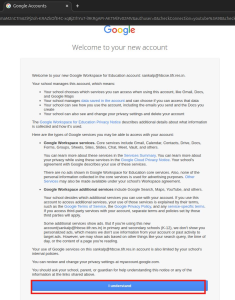
Step 3 — Accept the account notice. Click I understand to continue.

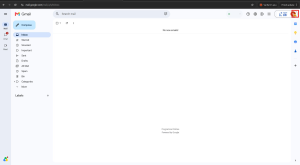
Step 4 — Open the account menu
Once you’re in your inbox, click your profile circle in the top-right corner.

Step 5 — Click on Manage your Google Account

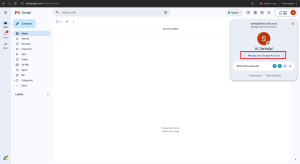
Step 6 — Go to google password

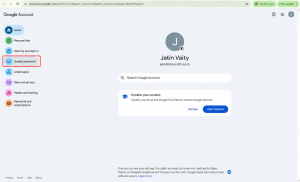
Step 7 — Set a new password
Type a new password into both fields and click Change password.

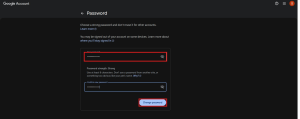
For 2 Factor Authentication: You can either use your google authenticator or your mobile number or both.
For google authenticator, follow steps 8 to 16.
Step 8 — Open the account menu
Once you’re in your inbox, click your profile circle in the top-right corner.
Step 9 — Click on Manage your Google Account
Step 10 — Go to Security and sign-in
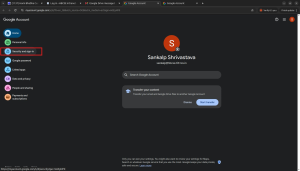

Step 11 — Click on 2-Step Verification

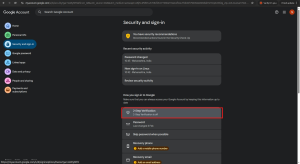
Step 12 — Click on the Authenticator app

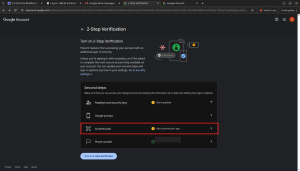
Step 13 — Start the authenticator setup
Click Set up authenticator
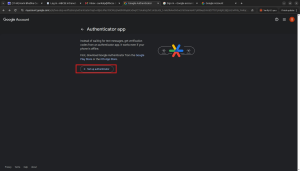

Step 14 — Scan the QR code
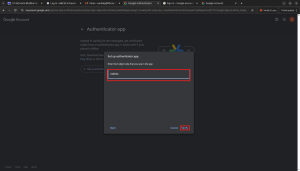
Open the Google Authenticator app on your phone, tap +, choose Scan a QR code, and scan the code on screen. Then click Next.

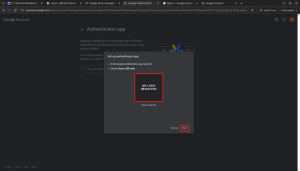
Step 15 — Enter the 6-digit code
Type the 6-digit code shown in the app and click Verify.

Step 16 — Turn it on
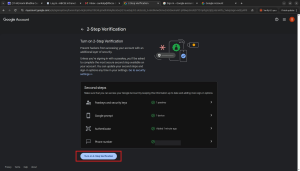
With authenticator app added, you can click Turn on 2-Step Verification.

For mobile number, follow steps 17 to 26.
Step 17 — Open the account menu
Once you’re in your inbox, click your profile circle in the top-right corner.
Step 18 — Click on Manage your Google Account
Step 19 — Go to Security and sign-in
If it asks to enter the password then enter your password and click next
Step 20 — Click on 2-Step Verification
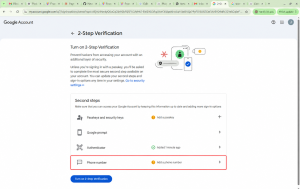
Step 21 — Click on the phone number option.

Step 22 — Add a phone number
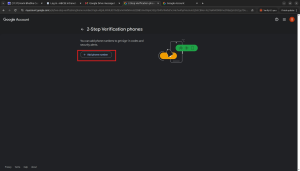
Click Add phone number to add a way to receive verification.

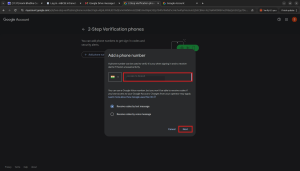
Step 23 — Enter your phone number
Type your phone number, choose how you’d like to receive codes (text or voice), and click Next.

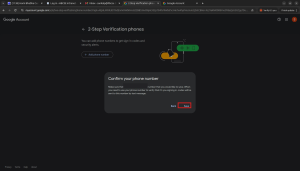
Step 24 — Confirm and save
Check the number is correct and click Save.

Step 25 — Turn it on
With mobile number added, you can click Turn on 2-Step Verification.